 Coffee Space


This article is a continuation from Smart Watch v1.
The following is a non-complete update regarding the changes to the hardware and firmware.
After realising there was an issue with v1 as highlighted in the previous article, I made a v2 version. Shortly after submitting this board, I discovered there was still an issue, hence a v2b version.
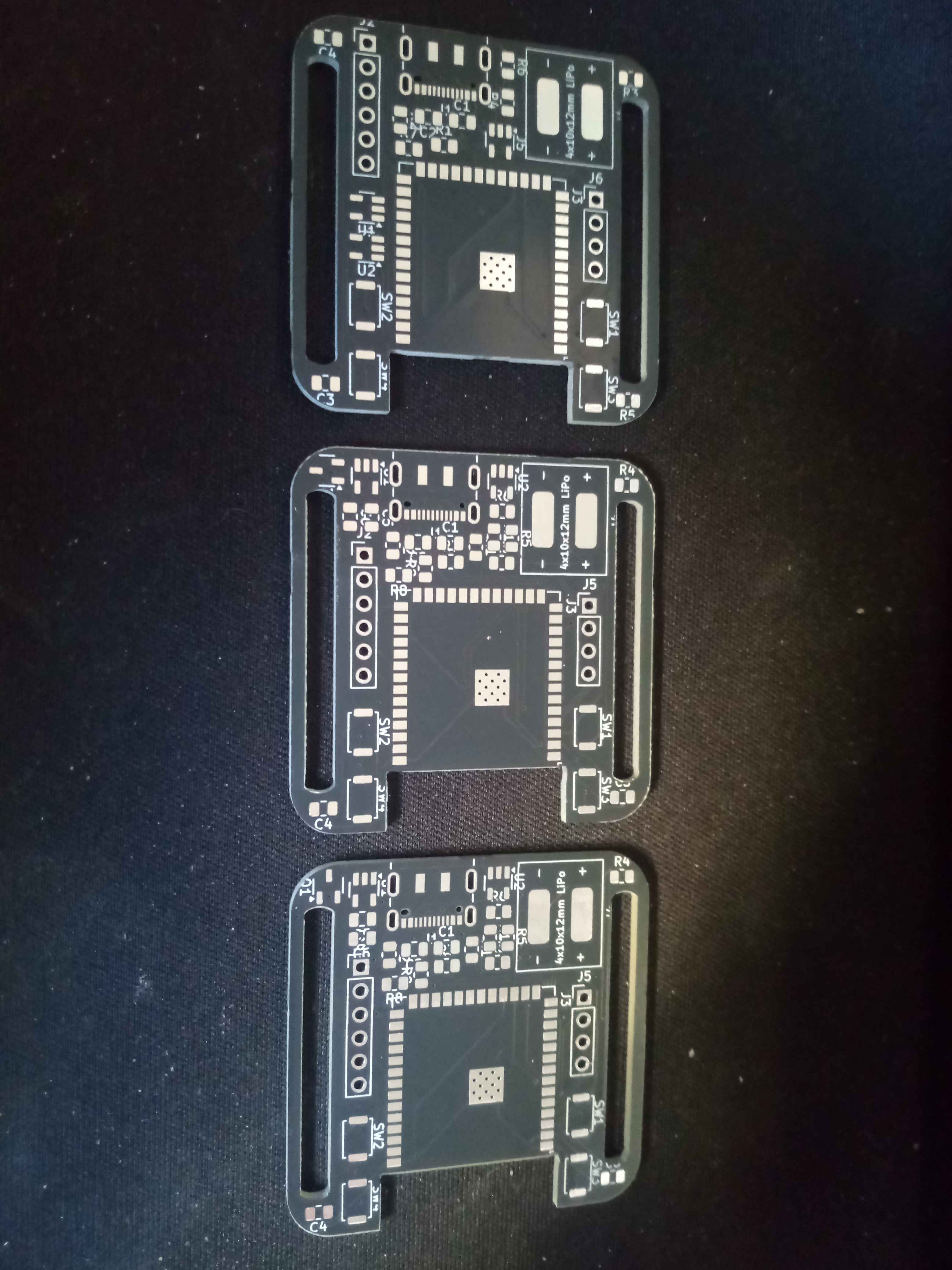
At least I have some PCBs to give away…
I finally got v2b in the post, buzzed all the connections successfully, and decided to solder it. To save some money I didn’t get a stencil, so I hand-placed solder paste by eye. I then manually pick-and-placed the surface mount components, and to my surprise - it all went well!
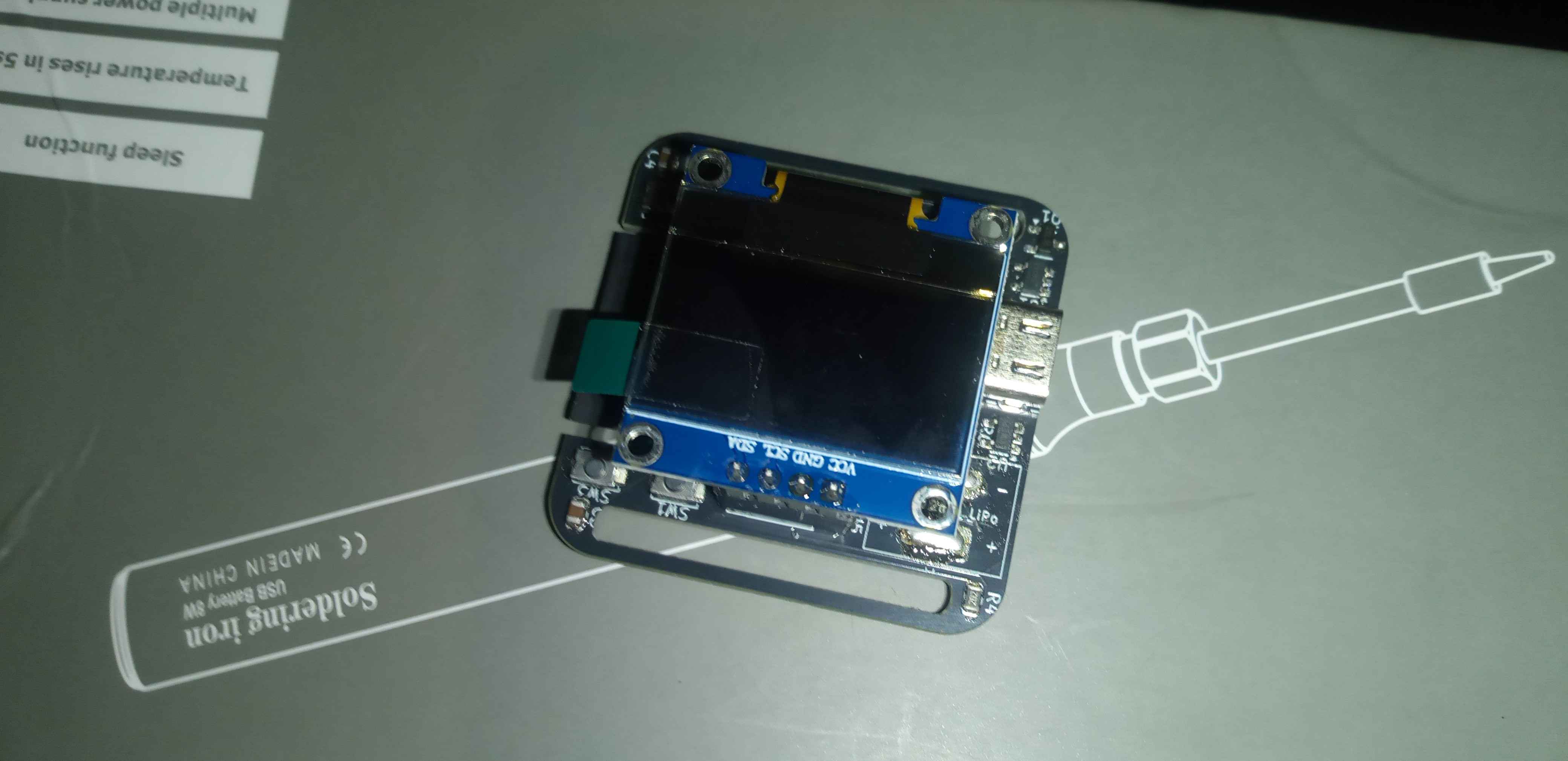
Once I was able to confirm that the battery charging circuit could properly charge the battery (by checking the ADC currently sees 4.2V), I was then able to solder the battery.
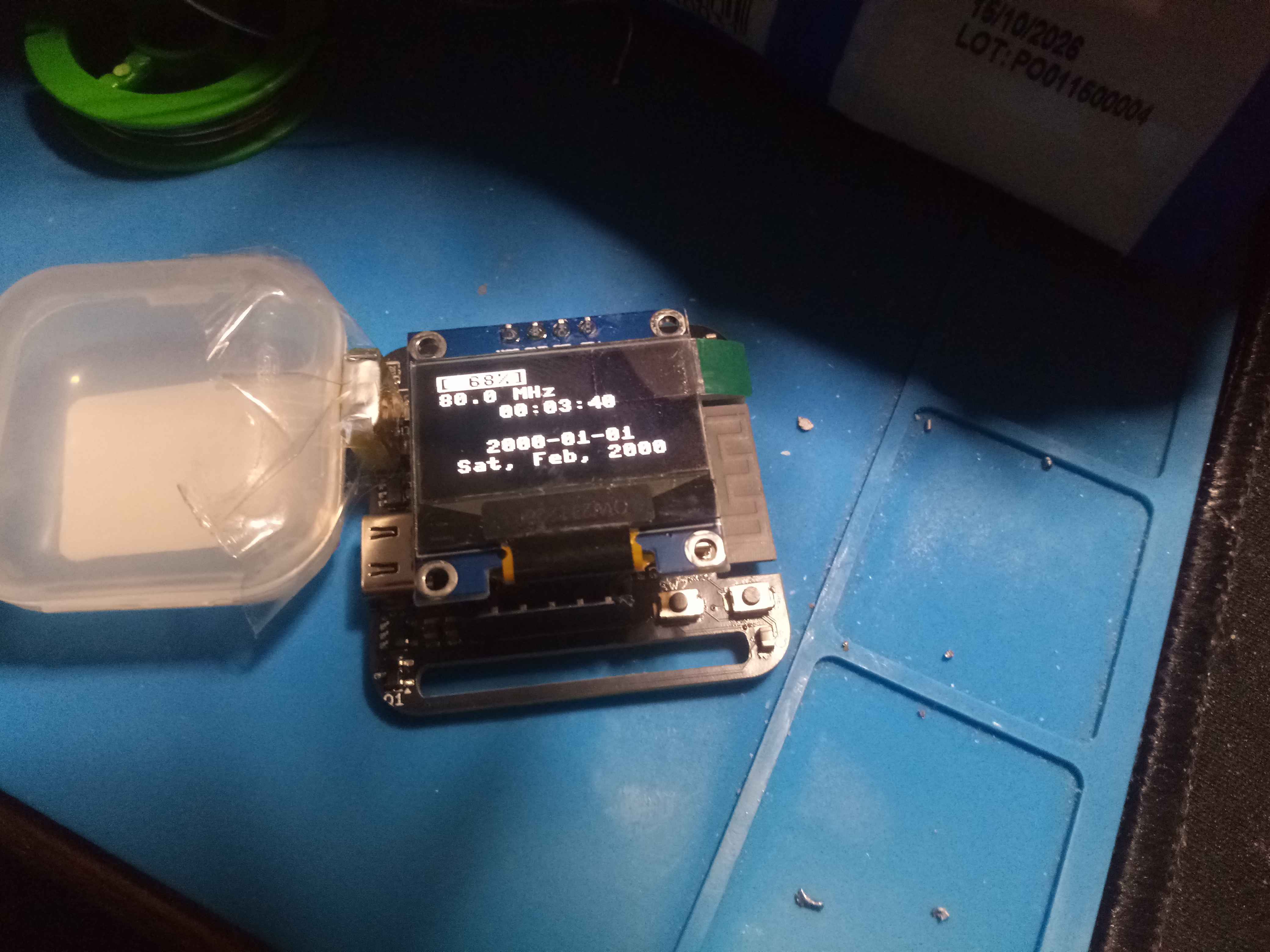
As you can see, there is very little mass to the battery and it did not want to sit on the pads during soldering. I resulted to taping the LiPo to a plastic case (that the OLED display was shipped in). You obviously can’t tape the battery to the board, because it gets too hot.
It was at this point, I greatly regretted having such a large ground plane. My little USB soldering iron could hardly get hot enough to begin to melt the solder, and as a result the LiPo battery got far hotter than I was happy with.
During soldering, the watch of course sprung to life, indicating that it had been done successfully.
The core interface has come along nicely, with several graphics
utilities developed to support it. One is the ability to dump the screen
buffer so that I can produce “screenshots” from the device. These are
stored as P4 PBM binary format - an old but
simple format.
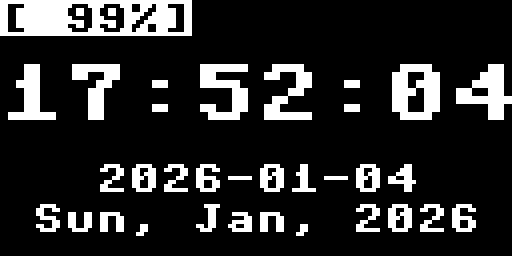
The main clock interface currently shows the measured battery percentage (4.2V 100% - 3.2V 0%) - and this works really quite well given that it is just an ADC reading via a switched ladder.
The time itself is grabbed via the RTC (which survives light and deep sleep), and is currently pushed via a configuration file when the Python files are deployed. It appears to keep time pretty well.
Micropython currently only supports 8x8 pixel fonts, which raises the question: How on earth is there a 16x16 font? We draw the font to the frame buffer, then perform an integer scaling to the frame buffer. In theory I could attempt some form of anti-aliasing, but instead we just embrace the blocky-ness.

Several icons have been prototyped as app icons and icons within
apps. The artificial limitation of 8x8 icons is quite challenging. It is
technically possible to do vector graphics, but it’s a lot of work. The
icons again are P4 PBM binary format, as
output by mtPaint.
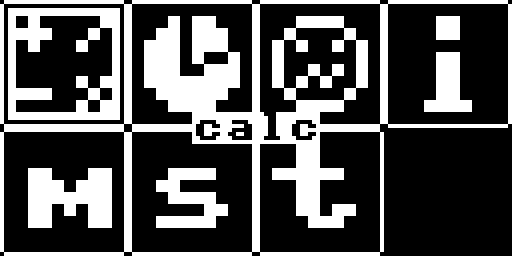
The menu itself is pretty slick, with the icon directory searched for a same-name icon to display (scaled up), or the first letter of the app name being used instead. In the middle of the display is the full name of the app highlighted to be clear which app is highlighted.
The border around icon is actually a vector graphic and would technically scale to any resolution display. The icon is pre-computed on menu app start to prevent too much processing power being wasted - a common theme in this watch.
One of the first apps to be developed was the calculator, because it is simple and shows off the use of Python very well.
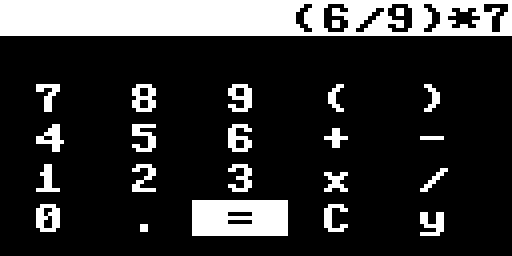
Normally the implementation of a calculator app that can handle brackets, etc, is quite a pain. But with Python the values can be easily evaluated. Very long expressions can be expressed and resolved quickly - more than good enough for such a lightweight watch. Dare I say it - this calculator is better than most default calculators in mobile phones.
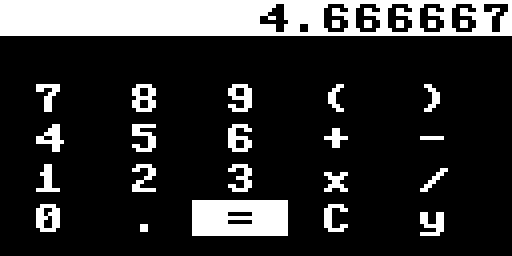
Beyond the expected functionality, C clears the display
and y writes the previous answer. You could for example do
the following:
0001 67 + 1 = # 68
0002 y + 1 = # 69
Being able to leverage the simplicity of Python allowed this app to be developed in mere hours.
One of the features I wanted to add was a WDT, i.e. a watch-dog timer. The idea is that if you don’t keep responding to the timer, it resets the device. In this way, it becomes impossible for an app to enter into an infinite loop and crash the entire watch.
It turns out though that once started, you are not allowed to stop the WDT in Micropython, despite it being supported by most modern micro-controllers. The issue really appears when you enter a light/deep sleep for a longer period than the WDT, and upon resuming the CPU the WDT is instantly triggered. This pretty much means that the WDT cannot be used in low-power applications. There is a GitHub issue to hopefully resolve this one day.
Power consumption has been a serious concern, and until now, no effort had been made to start the WiFi. After doing so, the device immediately browned out (crashed due to low CPU power). Uh oh. The problem is that I used a super cheap 300mA 3.3V low voltage drop-out regulator, and during WiFi initialisation, it exceeds this current draw. The reason for using such a low value is that it was cheap, at just 8p each.
I therefore had to turn the WiFi on carefully. To give you an idea:
0003 # active()
0004 #
0005 # Turn the interface on/off carefully to reserve power usage.
0006 #
0007 # @param self Reference to self.
0008 # @param act True to turn on WiFi, otherwise False.
0009 def active(self, act = True) :
0010   if not self.wifi.active() == act :
0011     self.wifi.active(act)
0012   elif act :
0013     # Test that the interface is *really* working
0014     try :
0015       rssi = self.wifi.status("rssi")
0016     except :
0017       # Trigger reset of interface
0018       self.wifi.active(False)
0019       self.wifi.active(True)
0020   to = time.ticks_ms() + 500
0021   while time.ticks_ms() < to and not self.wifi.active() == act :
0022     time.sleep_ms(100)
0023   if act :
0024     self.wifi.config(
0025       txpower = 10, # 10 dBm
0026       pm = network.WLAN.PM_POWERSAVE,
0027     )
0028   return
You first have to turn on WiFi to set the power configuration options, otherwise that part of the controller is simply not away to listen to the configuration requests. Sometimes it even pretends to be on, but it’s actually not on, so you have to make sure that it’s not tricking you. Even then, you still have to wait for the WiFi to actually become alive and ready to talk.
The real tricks are to put it into a power saving mode
(PM_POWERSAVE) which turns down beacons, etc. You must also
turn down the transmission power from approximately 20dBm to 10dBm,
otherwise it consumes too much power during transmission.
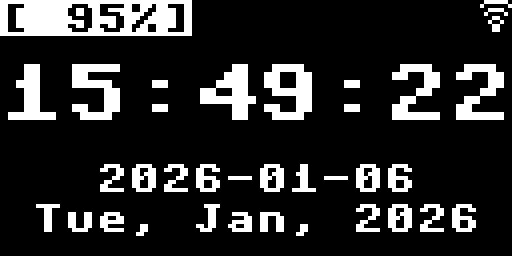
If you do all of these things, then you can get the WiFi to stay on reliably and not brown out the entire CPU.
Now that WiFi is working, the really cool stuff can happen. I have
written a http_get() function that opens a socket, grabs
the data within a limited buffer and closes the socket, to any given URL
at any given port.
The intention is to build out a few features:
In the future, I would then be interested in connecting to a server that can sync information across devices (i.e. calendar, notes, etc), or prepare media such as pictures, videos, web searches, wikipedia entries, etc.
For the most part, I want as many features as possible to operate correctly without needing the internet. If it’s possible to be done without the internet, it should be done so.
Some out of the box ideas that I’ve not seen elsewhere:
If I do another spin of the watch, I would consider a few more features:
Some nice to haves: